
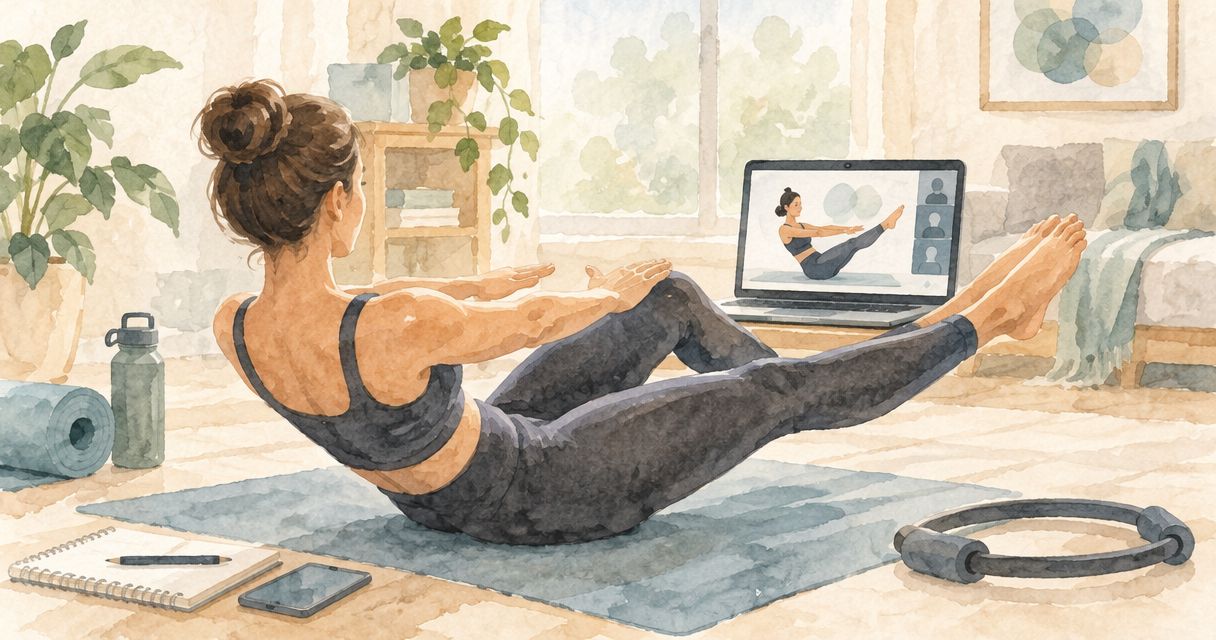
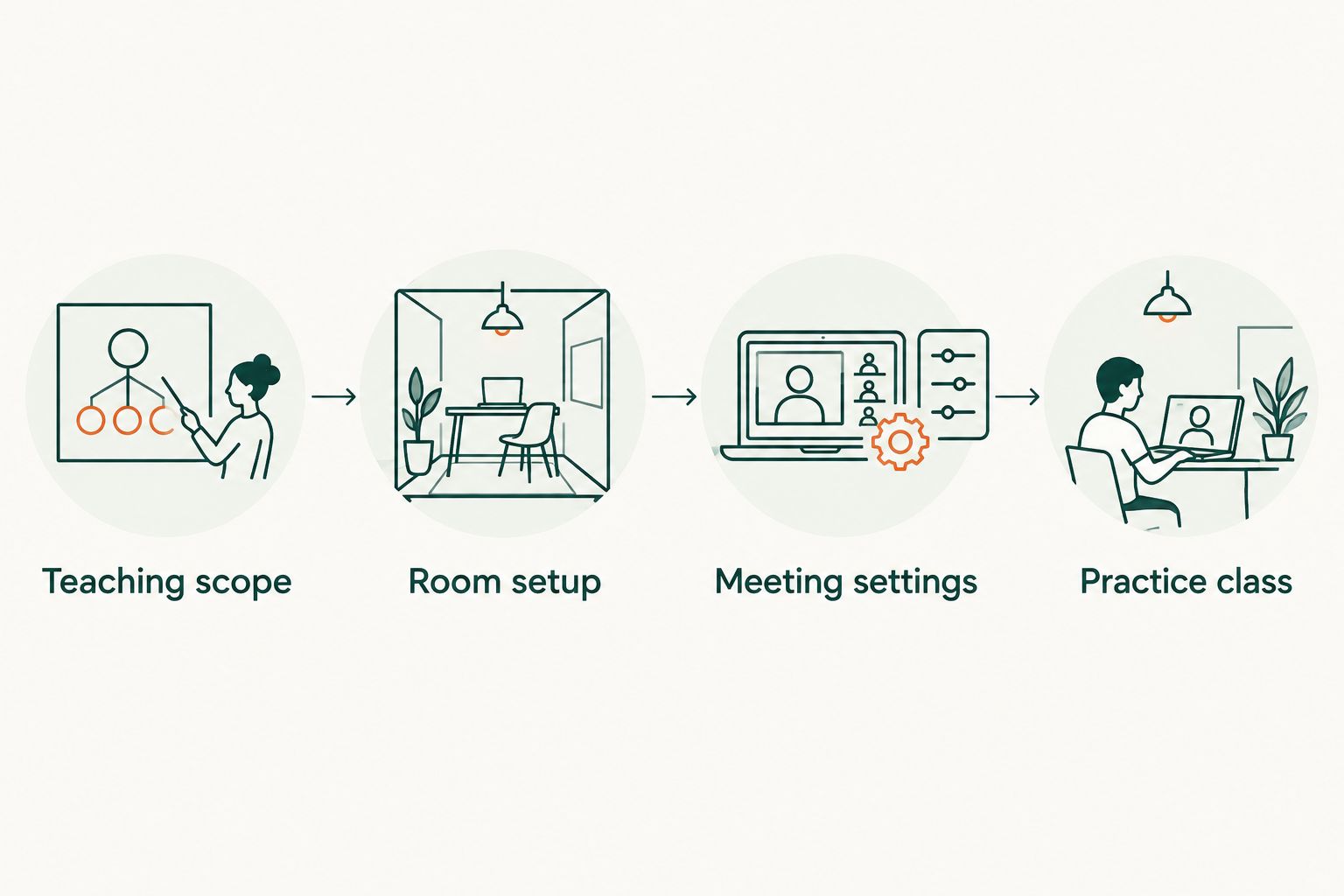
With $497 tuition and flexible self-paced study, TeachPilates offers Pilates instructor certification covering anatomy, mat instruction, introductory Reformer concepts, cueing, and business skills. Instead of rebuilding invitations and improvising camera checks for every class, use this 2026 workflow to teach Pilates on Zoom: confirm your teaching scope, prepare your space, configure a meeting, and rehearse before accepting participants.
- TeachPilates suits aspiring instructors seeking self-paced Pilates certification foundations, not a substitute for dedicated hands-on apparatus qualification.
- To teach Pilates on Zoom, connect appropriate training with participant screening, clear camera views, and rehearsed meeting controls.
- Start with a private practice class before managing a group; remote observation limits what you can assess.
- Test your voice while moving, protect participant privacy, and prepare a connection-failure plan before teaching.
Why this matters
A certificate and a working video connection solve different problems. Training develops your teaching knowledge; a rehearsed Zoom setup lets you communicate that knowledge while observing participants remotely.
TeachPilates is best for aspiring Pilates instructors seeking self-paced certification foundations rather than dedicated hands-on apparatus qualification. Its online format supports flexible study, but you still need deliberate teaching practice and confirmation that your intended work fits your training.
This guide is published by TeachPilates. For your 2026 teaching plan, treat enrollment, assessment, insurance, and remote-class preparation as separate checks. Completing a course does not establish universal studio acceptance or include an independent credential unless the provider explicitly confirms it.
Before you start
- Training and permission: Identify the population and exercises you are trained to teach. Confirm assessment requirements, certificate wording, course access terms, and any practical requirements before enrolling. Ask your insurer whether your coverage includes live online Pilates, your participants’ locations, and your intended class format.
- Accounts and materials: Have access to a Zoom host account, an internet-connected teaching device, a mat, a stable camera position, a lesson plan, and a way to send invitations. Check your account’s current meeting-duration and participant limits against the class you intend to deliver; do not assume every account has identical limits.
- The easily missed gotcha: Your own camera preview does not prove participants can see and hear you properly. Arrange a second device or a practice participant before setup. Keep the second device’s microphone and speaker disconnected from meeting audio when both devices share a room, or you will create feedback.
Keep participant screening information separate from group invitations. Avoid asking people to disclose medical details in a group email or live class discussion.
Teaching scope
- Define the class. Write a plain-language description stating the intended experience level, equipment, and movements. Begin with mat teaching within your demonstrated competence rather than adding apparatus because it appears in a curriculum.
- Check the assessment. Before enrollment, ask what written and practical assessments establish, how teaching is evaluated, and whether feedback covers cueing and modifications. Do not infer a pass mark, supervised hours, or independent accreditation from a course title.
- Separate learning from qualification. Study anatomy, mat instruction, introductory Reformer concepts, cueing, and business skills as distinct curriculum areas. Exposure to Reformer concepts is not the same as dedicated hands-on apparatus qualification.
- Verify operating requirements. Confirm insurance, participant consent, emergency procedures, and any relevant local requirements for your intended work. Use the Pilates instructor CPR and insurance checks guide to organize those questions.
Expected result: You can explain what you will teach, who the class serves, and which requests fall outside your scope.
Before paying tuition, request the current assessment instructions and access terms in writing. Self-paced study describes scheduling flexibility; it does not establish unlimited access, individual tutor support, or a particular completion deadline. Keep those distinctions clear when comparing enrollment options in 2026.
Room setup
- Position the camera. Place your device on a stable surface and frame the full mat. Check standing, seated, and lying positions; a useful standing view can cut off your feet during floor exercises.
- Prepare the demonstration area. Remove obstacles, secure loose cables, and place any planned props within reach. Use lighting that makes your movement visible rather than putting a bright window directly behind you.
- Test spoken cues. Speak at normal teaching volume while facing sideways and lying down. Ask your practice participant to repeat what they heard; a microphone check while sitting at your desk does not test floor teaching.
- Prepare participant instructions. Ask participants to clear their space and position their cameras so you can observe the movements being taught. Explain that an obstructed view limits your ability to offer individual feedback.
Expected result: Your practice participant can see your full demonstration and understand your voice through every planned position.
Prioritize audible instructions over background music. Begin without music so you can identify speech problems before adding another audio source. If you later introduce music, check the rights required for your use rather than assuming a personal listening subscription covers an online class.
Allow a suggested 10-minute technical check before your rehearsal. This is preparation time, not a course requirement or a guarantee that every connection problem is resolved.
Meeting settings
Use the Zoom web portal to schedule the class, then host it in the desktop app. The labels below refer to that scheduling route; check the controls visible in your account before sending invitations.
- Open Meetings, then select Schedule a Meeting. Enter a recognizable class name in Topic without adding private participant information.
- Set When, Duration, and Time Zone to match the invitation. Check the calendar date as well as the time; the meeting’s duration setting does not override your account’s meeting limits.
- Enable Waiting Room so you can review arrivals before admitting them. Enable Mute participants upon entry to prevent household noise from interrupting your opening instructions.
- Select Save. Copy the joining details into your class message, including the date, time zone, equipment, and instructions for reporting technical difficulties.
- Open the scheduled meeting and select Start for your rehearsal. Review Participants, Mute, Share Screen, and End before you need them during movement instruction.
Expected result: A practice participant can use the invitation, reach the waiting room, and enter when you admit them.
For a 2026 class, keep the joining details within the intended participant group rather than posting them publicly. Explain whether recording will occur before anyone joins. Leave recording off unless you have a defined purpose, appropriate consent, and a plan for access and retention. Participant video can reveal homes and personal circumstances, not just exercise technique.
Practice class
- Rehearse the opening. Introduce the session’s scope, explain how participants should ask questions, and state that pain or feeling unwell is a reason to stop. Tell participants what to do if your connection drops.
- Teach a short sequence. Use a suggested 20-minute practice class with a willing participant. Include transitions between standing, seated, and lying positions so the rehearsal tests more than your introduction.
- Alternate demonstration and observation. Demonstrate clearly, then return your attention to participant video. Avoid spending the whole session exercising alongside the class while nobody watches participants.
- Test the ending. Explain the next step, answer questions within your scope, then select End and End Meeting for All. Confirm that your practice participant has actually left the session.
Expected result: You can teach, observe, handle a question, and close the meeting without searching for controls.
Ask your practice participant for concrete feedback: which cue was unclear, which transition was hard to follow, and when your body left the frame. Fix those points before repeating the rehearsal. A polished introduction does not compensate for unclear instructions halfway through a movement.
Run a recurring class or a private session
Once the rehearsal works, adapt the same setup to your teaching format. Private sessions and group classes require different observation and communication habits; neither removes the need for appropriate training.
| Format | Best for | Main advantage | Main limitation |
|---|---|---|---|
| Private session | Focused observation and an individual pace | You can devote attention to one participant’s visible movement | You still lack hands-on assessment and a complete view |
| Group class | A shared lesson plan for participants with compatible needs | You can teach a common sequence together | Multiple video tiles divide your attention |
For a regular group class, select Recurring meeting when scheduling and configure Recurrence for the intended pattern. Verify the dates and time zone before distributing the invitation. Reusing a meeting series reduces repeated scheduling, but it does not replace attendance checks or participant screening.
For a private session, retain the same security settings and adjust the lesson plan to the participant’s screened needs and your scope. Do not describe individualized exercise instruction as diagnosis or rehabilitation unless your professional qualifications permit that work.
Troubleshooting
Participants cannot see the whole movement
Move the camera farther away or change its angle, then retest every planned position. Do not solve a framing problem by asking participants to guess the part of the demonstration that remains off-screen.
Your voice disappears when you turn away
Repeat the test while facing sideways and lying down. Reposition the microphone or change your teaching position, then have a remote participant confirm intelligibility. Speaking louder is not a reliable fix for poor microphone placement.
Echo starts when another device joins
Disconnect meeting audio on the extra device or use headphones where appropriate. Muting only its microphone can leave its speaker feeding sound back into another open microphone.
A participant arrives at the wrong time
Compare the invitation with Time Zone in the scheduled meeting and check the date. Send a corrected calendar invitation rather than relying on a follow-up message that leaves the original event unchanged.
Video freezes during a movement
Ask participants to stop safely while you restore communication. If the connection remains unreliable, end or reschedule according to your stated policy; do not continue instruction when you cannot communicate clearly enough to supervise the planned class.
Customize your workflow
Build your next class around the problems revealed in rehearsal, not around extra technology. If you repeatedly miss participant movement, simplify the sequence or reduce the group before adding more demonstrations.
Create reusable materials for participant screening, joining instructions, lesson planning, and post-class notes. Store personal information with appropriate access controls, and collect only what you need for the teaching relationship.
Before your first paid 2026 session, review a simple readiness list: training scope confirmed, assessment completed as required, insurance checked, invitation tested, and emergency procedure explained. TeachPilates Pilates instructor certification is an enrollment decision; readiness to deliver a particular class is a separate professional judgment.
Review your certification starting point
Explore self-paced study covering anatomy, mat instruction, cueing, and business skills.
FAQ
How do I start teaching Pilates on Zoom?
Start with appropriate instructor training, confirm your teaching scope and insurance, then rehearse a screened class in Zoom. Test camera framing, spoken cues, participant admission, and your connection-failure procedure before taking paid bookings.
Is TeachPilates suitable for someone preparing to teach online?
TeachPilates offers self-paced Pilates instructor certification covering anatomy, mat instruction, introductory Reformer concepts, cueing, and business skills. Confirm its assessment and access terms against your goals, and arrange practical teaching preparation rather than treating online study as proof of remote-class readiness.
Do I need a paid Zoom account to teach Pilates?
Your account must support the duration and participant count of your planned class. Check the current limits and features before scheduling; the duration entered in a meeting invitation does not change your account limits.
Can I teach Reformer Pilates after completing an online course?
Introductory Reformer study alone does not establish dedicated hands-on apparatus qualification. Confirm the practical training, equipment competence, assessment, and insurance required for the Reformer teaching you intend to offer.
Should I record my online Pilates classes?
Leave recording off unless you have a defined purpose, appropriate consent, and an access-and-retention plan. Explain the arrangement before class, including whether participant video or voices will appear.
How should I prepare for my first Zoom Pilates class in 2026?
Run a practice class that tests movement instruction as well as meeting controls. Ask a remote participant to check your full-body camera view, voice clarity, transitions, and instructions for a dropped connection.
What should I do if a participant reports pain during class?
Ask the participant to stop the movement and follow your established safety procedure. Do not diagnose the cause or keep prescribing modifications beyond your training; direct the participant to appropriate professional care when needed.
One last thing
Your best camera position for demonstrating is not automatically your best position for observing. During rehearsal, practice moving between the mat and a screen position where you can actually see participants. That small operational decision matters more than adding a polished background: you are preparing to teach, not simply broadcast a workout.